For Canadian practices outside Quebec
Book recurring appointments and check the dates created
Create a recurring series from New appointment, choose a frequency and number of occurrences, then review the actual visits on the calendar. Each date is checked separately. Conflicting or unavailable occurrences may be skipped, so requesting eight visits does not guarantee that eight are booked. Confirm the created dates before telling the family.
Last updated: 2026-10-09
Before you start
Use an account with permission to manage appointments. Check the selected branch and the time zone shown in the appointment dialog. Have the client, therapist, duration and any room or equipment ready. If you attach a treatment plan and delivery schedule, its booking window also applies.
Create the recurring series
Open Appointments and select New appointment. Repeat this appointment is available when creating a visit, rather than editing an existing one.
- 1. Choose Client and Therapist. Select the appropriate Therapy type and, when needed, Treatment plan.
- 2. Enter the first visit’s Start time and End time. Check the displayed time zone.
- 3. Choose Room, Location and Equipment where needed, and complete Appointment title.
- 4. Turn on Repeat this appointment. Set Frequency to Weekly, Every 2 weeks or Monthly.
- 5. Enter Occurrences between 2 and 52. This number includes the first appointment.
- 6. Select Create appointment. Read the result showing how many requested occurrences were created and any skips.
Review skips and calendar gaps
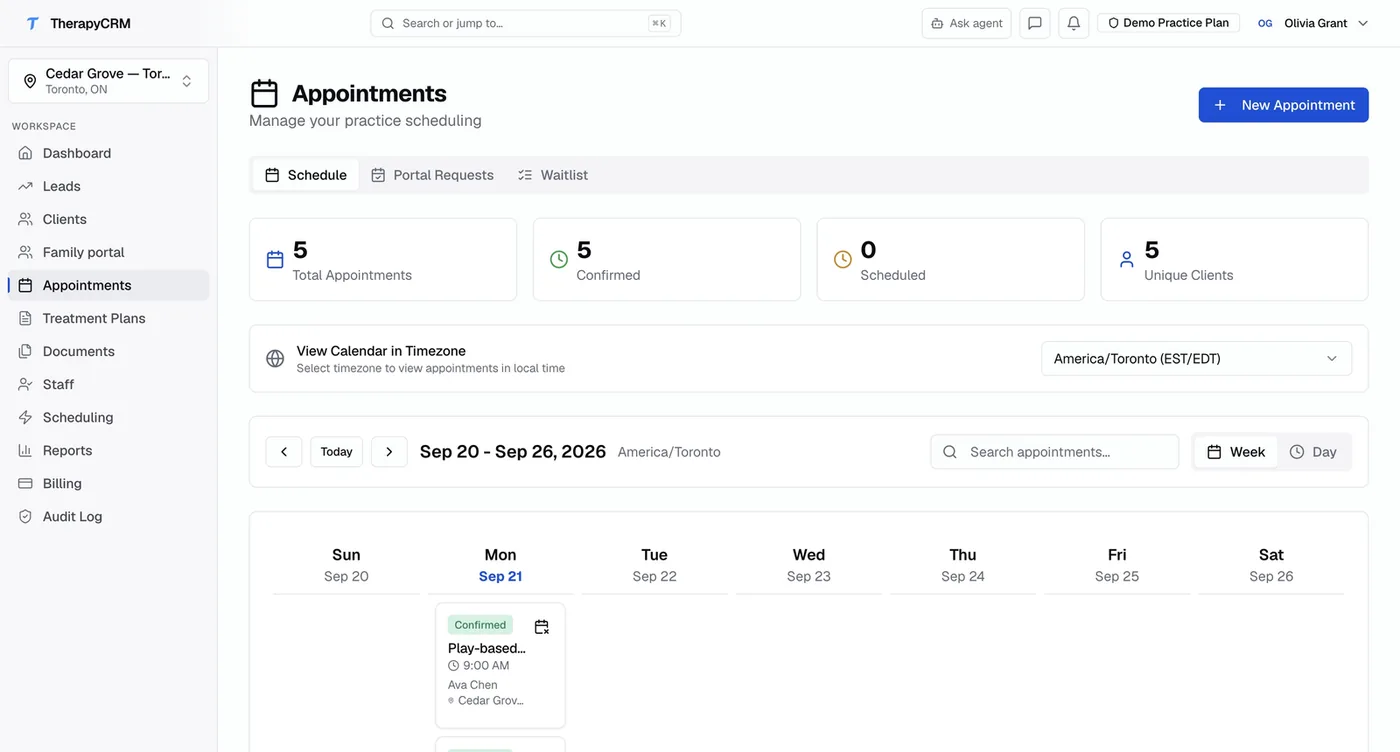
The creation message distinguishes created visits from skipped occurrences. Review the series across the expected dates in the calendar. A skipped date is not a booked appointment or a waitlist reservation.
- A conflicting client, therapist, room or equipment booking can skip that occurrence.
- Guardian-reported client unavailability can skip an occurrence.
- An attached plan’s delivery window can make an occurrence unbookable.
- A therapist-hours warning requires a deliberate decision. Select Review time to change it, or Schedule anyway only when the practice intends an exception; this does not bypass a conflicting resource booking.
- After resolving a skipped date, create the missing appointment deliberately. Do not recreate the entire series and risk duplicate visits.
Cancel the correct part of a series
Open the relevant recurring appointment and choose More → Cancel appointment. The confirmation lets you select the scope.
- Cancel this appointment only changes that visit.
- Cancel this and following appointments changes the selected visit and later occurrences in the series; earlier visits remain.
- Keep appointment dismisses the cancellation. Cancelled visits remain visible for audit history.
When a series does not match your plan
Check the requested count, frequency, branch, time zone and creation summary first. If fewer dates appear, review conflicts and unavailable dates. If Repeat this appointment is absent, start a new appointment: the control does not convert an existing visit into a recurring series. Editing one existing occurrence is not a bulk reschedule of all future dates.
Frequently asked questions
Does Occurrences count the first visit?
Yes. Occurrences is the total requested count, including the first appointment. Check the creation result because conflicts and unavailability can reduce the number actually booked.
Does editing one appointment reschedule the whole series?
No. Treat an existing appointment edit as a change to that occurrence. To cancel future visits, use the explicit Cancel this and following appointments choice and review the resulting calendar.