For Canadian practices outside Quebec
Invite a guardian and set access for one child
Use Portal access in the client’s Communications tab to invite a guardian and choose what they may see for that child. Confirm the person’s authority before issuing access, verify the email and review all four access levels. The family portal shares selected information; an invitation does not expose the full staff clinical record.
Last updated: 2026-10-09
Before you start
A practice owner, administrator or manager, or a staff member assigned portal-account management permission, manages invitations. Confirm the intended person and the practice’s lawful basis for disclosure, including any applicable consent or custody restrictions. Being listed as a parent or emergency contact is not by itself a decision about access.
Create the invitation
Open Clients, choose the child, select Communications and find Portal access.
- 1. Select Invite guardian.
- 2. If appropriate, select Guardian contact to link an existing contact. Check the populated Email, Name and Relationship; verify the email even when it is filled automatically.
- 3. Under What this guardian can see and do, review Clinical, Photos & video, Billing and Scheduling. The invitation initially selects all four: turn off any levels this person should not receive.
- 4. Select Create invite. Check whether the dialog confirms that the invitation was emailed or asks you to share the secure link yourself.
- 5. If manual sharing is needed, use Copy guardian invite link and send it to the verified recipient through the practice’s approved channel. The link expires in 14 days.
Understand each access level
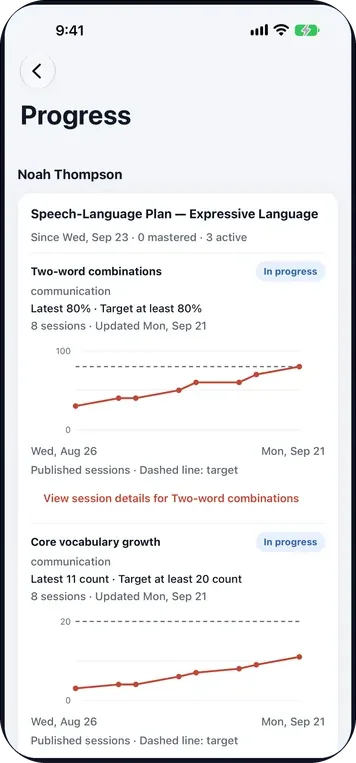
Levels are set for this guardian’s link to this child. Visits, attendance history and secure messages remain included even when the four optional levels are off; a billing-only configuration is therefore not an invoice-only view.
| Level | What it enables |
|---|---|
| Clinical | Shared care updates, home program, documents, assigned forms and family-facing progress |
| Photos & video | Media attached to shared updates, subject to the child’s media consent and the practice’s sharing workflow |
| Billing | Invoices, payment plans and session packages |
| Scheduling | Visit requests, unavailable dates, and requests to move or cancel visits |
Family-facing progress uses published or approved information. Staff-only clinical rationale, internal notes and unpublished session data are not a full-record portal view.
Check the accepted account and change access
After the guardian accepts, review their account in Portal access. What they can see and do lets you change the four levels; the change is applied to subsequent portal requests. For arrival and pickup notices, check Guardian for arrival and pickup notices, especially when the portal email differs from the contact record. Matching the guardian does not override custody restrictions.
- In the account’s actions menu, Unlink from this client removes access to this child. Their sign-in can continue for other children linked to that account.
- Disable portal access blocks that account’s sign-in for every linked child until enabled again. Read the confirmation before using this broader action.
- Neither account action is a substitute for updating the practice’s underlying consent, authority and custody records.
If the invite or shared information is missing
Review the pending invitation’s status and expiry. Resend creates a fresh link and invalidates the previous one; Revoke invite prevents that pending link from being accepted. If email delivery is not configured, the screen provides a link for manual sharing instead of confirming an email send.
- For an accepted account that cannot sign in, check whether the account is disabled; an authorized staff member can use Send password reset.
- For missing progress, documents or updates, check both the guardian’s Clinical level and whether staff have shared or published the relevant content. Do not solve a missing item by sharing unrestricted clinical records.
- Scheduling access permits requests. Staff still review requested visits and changes; a guardian’s request does not itself confirm a booking.
Frequently asked questions
Can two guardians have different access to the same child?
Yes. Clinical, Photos & video, Billing and Scheduling are controlled for each guardian’s link to the child. Visits, attendance history and secure messages are included independently of those four levels.
Does turning on Clinical share every staff note?
No. It enables shared clinical content and the family-facing progress view. It does not provide the complete staff clinical record or unpublished session data.